
Experiencing charging issues with your laptop can disrupt your daily routine, if you are working from home in Hove or handling tasks on the go. Many people encounter a “laptop not charging” message, where the device remains plugged in but shows no battery charge. These problems often stem from minor issues that you can address at home, though some require expert attention.
This comprehensive guide explores common causes and provides practical, step-by-step solutions to restore reliable power to your device.
Understanding Why Your Laptop Is Not Charging
A laptop not charging indicates either “plugged in, not charging” or a constant battery percentage. This affects various brands and models, often due to hardware wear, software conflicts, or environmental factors. Recognising the symptoms early helps avoid escalation into more serious faults, such as a complete power failure.
Basic Checks to Start Troubleshooting
Most charging issues can be resolved through straightforward inspections. Start here before advancing to complex steps.
Inspect the Power Outlet and Connections
- Test the wall socket with another appliance, like a phone charger or lamp, to confirm it supplies power.
- Ensure the charger connects firmly to both the outlet and the laptop.
- Try alternative outlets in your home, as faulty wiring or overloaded circuits sometimes cause intermittent issues.
Examine the Charger and Cable
Examine the adaptor brick and cable for visible damage, including frayed wires, bent connectors, or burn marks. Frequent coiling or pulling strains the cable over time. If the adaptor’s LED light fails to illuminate, it indicates a potential fault.
How to Fix Laptop Charger Issues?
Damaged chargers often cause inconsistent power delivery. Always replace it with a compatible unit that matches your laptop’s voltage and wattage specifications; using underpowered alternatives can result in slow or no charging.
- Test with a borrowed compatible charger to isolate the problem.
- Avoid third-party options that lack proper certification, as they may overheat or perform inadequately.
- For genuine replacements and testing, local experts can quickly verify compatibility.
Persistent searches for how to fix laptop chargers highlight how common adaptor failures are, but a correct replacement restores function reliably.
Identification and Fixes
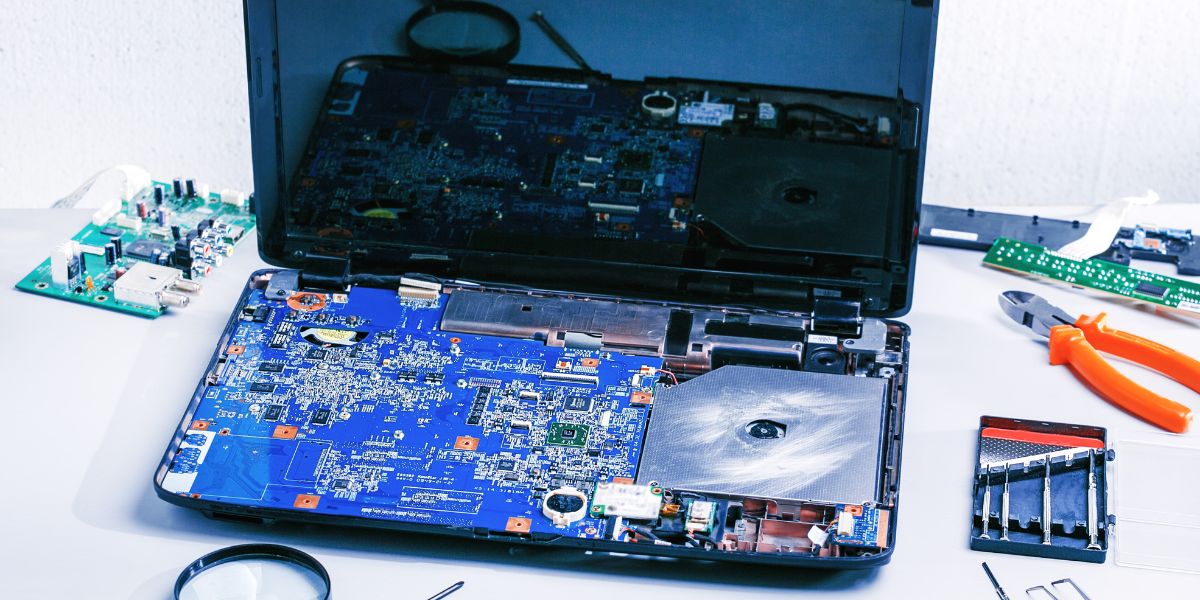
Read about how to identify the laptop charging port issues and how to fix them:
Common Signs of Charging Port Problems
Laptop charging port issues may include loose connections, charging at specific angles, intermittent power, or no recognition of the plugged-in charger. Dust buildup, debris, or physical damage from repeated insertions contribute significantly.
Cleaning the Port Safely
Always power off and unplug the laptop first.
- Utilise brief bursts of compressed air to remove loose debris.
- Gently employ a wooden toothpick or plastic tool to remove stubborn debris, and avoid metal objects to prevent damage.
- For deeper cleaning, apply a small amount of isopropyl alcohol (at least 90%) to a cotton swab, swab carefully, and allow full drying before testing.
Regular maintenance prevents recurrence.
When the Port Needs Professional Attention
If cleaning does not improve the condition or prevent damage (e.g., bent pins), the port may need resoldering or replacement. Customers can rely on Fone World Hove for expert laptop repairs in Hove. Our skilled technicians provide reliable diagnostics and efficient repairs, resolving issues quickly without unnecessary delays.
Deeper Troubleshooting
Read about how to deal with a laptop battery not charging. Check the fixes below:
Software and Driver-Related Causes
Outdated drivers frequently interrupt charging.
- To address battery issues, open Device Manager by right-clicking the Start menu.
- Next, expand the Batteries section, right-click the entries such as Microsoft AC Adaptor, and select Uninstall device.
- After completing this step, restart your computer to allow the drivers to reinstall automatically.
- For optimal performance, update drivers via your manufacturer’s support app or website to ensure you have the latest versions.
Running Built-in Troubleshooters
On Windows:
- Navigate to Settings > System > Troubleshoot > Other troubleshooters.
- Run the Power troubleshooter and apply fixes.
Checking for Overheating and Power Settings
High temperatures trigger protective halts in charging.
- Ensure vents remain clear and use on hard surfaces.
- Close demanding applications and monitor temperatures with built-in tools.
Some laptops feature conservation modes that limit charge to 60-80% to extend battery life. Check the manufacturer’s software (e.g., Lenovo Vantage or HP tools) to adjust or disable settings.
Battery Health Assessment
Run diagnostics:
- To generate a detailed battery report on Windows, open Command Prompt as an administrator and type the command: powercfg /batteryreport.
- This report analyses your battery’s performance.
- Pay particular attention to the full charge capacity compared to the design capacity; a significant reduction indicates potential battery degradation or wear.
Advanced Steps for Persistent Problems
- To troubleshoot your device, perform a power reset by turning it off, unplugging it, and removing the battery if possible.
- Hold the power button for 30 to 60 seconds to clear residual power, then reassemble and test the device.
- Additionally, consider updating the BIOS from the official manufacturer’s website, carefully following the provided instructions.
- Lastly, calibrate the battery by fully charging it, allowing it to discharge until it shuts down, and then recharging it without interruption.
These address deeper firmware or calibration mismatches.
Preventing Future Charging Problems
Proactive habits extend component life.
- Use surge protectors to shield from power fluctuations.
- Avoid extreme temperatures and ensure proper ventilation.
- Store chargers are loosely coiled, not tightly wrapped.
- Clean ports periodically and inspect cables routinely.
When to Seek Professional Help
Home repairs can address numerous issues, but problems such as damaged charging circuits, malfunctioning motherboards, or worn-out batteries require specialised tools and expertise. Overlooking these signs may lead to data loss or additional damage.
For a comprehensive assessment, our professional laptop battery repair service at Fone World Hove accurately identifies the underlying causes. Customers trust us for thorough diagnostics, genuine parts, and swift repairs that restore your device to optimal condition.
FAQs:
1. Why does my laptop indicate “plugged in, not charging”?
This usually happens due to a faulty charger, loose charging port, outdated drivers, or overheating protection. Try a different charger or run the power troubleshooter first.
2. How can I check if my laptop’s charging port is broken?
Signs include a loose connection, needing to hold the plug at an angle, intermittent charging, or no response when plugged in.
3. Is it safe to clean the laptop charging port myself?
Yes, if done carefully, power off the device, use compressed air or a wooden toothpick gently, and avoid metal tools or liquids.
4. When should I replace my laptop battery?
Replace it when the battery health report shows significantly reduced capacity (below 50 to 60% of its original capacity), or it no longer holds a charge despite troubleshooting.
5. Can using a non-original charger damage my laptop?
Yes, incompatible or low-quality chargers can cause slow charging, overheating, or long-term damage to the battery and charging circuit. Always use manufacturer-recommended ones.
Final Thoughts
Laptop charging problems, while common, rarely indicate irreparable damage when addressed promptly. Systematic troubleshooting, from basic connections and cleaning to software updates and resets, restores functionality in most instances. Adopting preventive measures ensures longer-lasting performance. Should efforts fall short, timely professional intervention can prevent escalation and maintain productivity.