
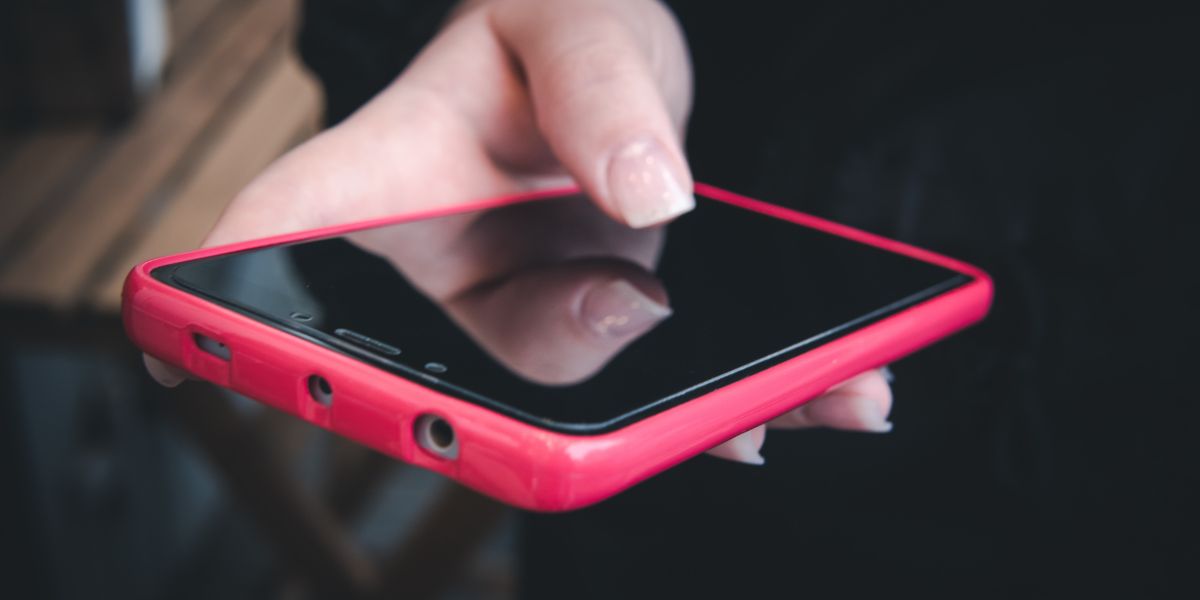
Touchscreens are the heart of every modern mobile phone, enabling us to navigate apps, send messages, and stay connected with ease. Yet, when problems arise, they can turn a reliable device into a source of real frustration. Many people encounter touchscreen issues on their mobile devices from time to time, whether it’s an entirely unresponsive touchscreen or intermittent glitches. The good news is that most of these problems have straightforward explanations and solutions.
This guide explores the most common touchscreen faults and provides practical steps on how to fix a phone’s screen touch issues effectively.
Why Do Touchscreen Problems Occur?
Recognising the underlying causes is essential for selecting the appropriate solution. Touchscreen malfunctions generally fall into two categories: software-related and hardware-related.
Software Glitches and System Issues
Software issues are often the cause of sudden touchscreen failure. An outdated operating system can contain bugs that affect touch registration. Similarly, recently installed apps might conflict with the system, causing erratic behaviour. Over time, accumulated cache data or insufficient storage space strains the processor, leading to delayed or missed touches.
Background processes running excessively also contribute to slowdowns. When the phone’s resources are stretched thin, touch input processing takes a backseat.
Hardware Damage and External Influences
Physical damage remains a leading cause of persistent issues. Even a small drop can misalign the digitiser, the layer that detects finger contact, resulting in dead zones or complete failure. Exposure to liquids, even minor splashes, corrodes internal connections and disrupts signal transmission.
Environmental factors play a role, too. Extreme cold can temporarily reduce screen sensitivity, while heat can cause thermal expansion that affects components. Every day, the buildup of fingerprints, oils, and dust creates an insulating layer that interferes with the capacitive technology most screens rely on.
The Most Common Touchscreen Problems
Users report a range of symptoms, each pointing to specific underlying issues.
Completely Unresponsive Phone Touchscreen
This is one of the most alarming problems: the phone touchscreen is not working at all. Taps and swipes go unregistered, locking you out of basic functions. It often occurs after a software update, a drop, or exposure to liquid.
Ghost Touches and Phantom Inputs
The screen has a mind of its own, registering touches that never happened. Apps open randomly, text appears without typing, or the device scrolls on its own. Overheating, faulty chargers, or software conflicts frequently trigger this.
Laggy or Delayed Touch Response
Input registers with a noticeable delay, making typing, gaming, or scrolling frustrating. Common culprits for this sluggishness include low available RAM, outdated firmware, or excessive resource usage by applications that degrade system performance.
Partial or Spotty Responsiveness
Certain areas of the screen respond flawlessly to touch, while others remain unresponsive and dead. This patchy behaviour typically indicates localised damage to the digitiser or loose ribbon cables within the phone, which can affect overall functionality.
Touch Issues Only in Specific Apps
Occasionally, the problem manifests itself as being limited to one or two specific applications. This observation strongly suggests that the underlying issue is app-specific bugs rather than a broader fault affecting the entire device.
Step-by-Step Home Fixes for Touchscreen Problems

Many touchscreen issues can be resolved without professional intervention. Follow these mobile screen repair tips in order, starting with the simplest.
Initial Quick Checks
Begin with the basics:
- Restart the Device: A standard reboot clears temporary memory glitches. On most phones, press and hold the power button, then select Restart. If the screen is unresponsive, hold the power and volume down buttons for 10 to 20 seconds to force a restart.
- Clean the Screen Properly: A soft, lint-free microfiber cloth will be ideal for this. Gently wipe in circular motions. For stubborn marks, lightly dampen the cloth with distilled water; never apply liquid directly to the screen.
- Remove Accessories: Screen protectors, especially cheap or poorly applied ones, reduce sensitivity. Peel it off temporarily to test. Similarly, remove any case that might press on the edges.
Software-Based Solutions
If quick checks fail, move to system adjustments:
- Update Everything: Go to Settings > System > Software Update (or similar path) and install any available updates. Manufacturers often release patches specifically addressing touch responsiveness.
- Boot into Safe Mode: This loads the phone with only essential software. On Android, press and hold the power button, then press and hold “Restart,” then confirm Safe Mode. On iPhones, the process varies slightly by model. If the touchscreen usually works here, a third-party app is likely the issue; uninstall recent downloads.
- Clear Cache and Free Space: Navigate to Settings > Storage and clear cached data. Delete unused apps and back up photos/videos to the cloud or computer.
- Adjust Touch Settings: Some devices offer touch sensitivity options. On Samsung phones, for example, search for “Touch sensitivity” in Settings and enable it if using a thick protector.
More Advanced Troubleshooting
For stubborn problems:
- Adjust the Touchscreen: You can use the dial code #0# or access it in Developer Options on specific Android devices.
- Factory Reset as Last Resort: This wipes all data and restores factory settings. Back up everything first via cloud services or a computer. Access the reset option in Settings or Recovery Mode.
These steps resolve the majority of software-induced touchscreen faults.
Recognising When Professional Help Is Needed
Not all issues respond to home remedies. Signs of hardware damage include visible cracks (including hairline cracks), issues persisting after a factory reset, or issues that start immediately after a drop or liquid contact.
Attempting DIY hardware repairs often worsens the situation, especially with modern sealed devices. Professional technicians have the tools and expertise to replace digitisers accurately without causing collateral damage.
If you’re experiencing touchscreen issues with your mobile phone, our reliable mobile phone repairs in Hove can help. The expert team at Fone World Hove specialises in precise diagnostics and high-quality screen replacements, quickly restoring your device to full working order.
How to Prevent Future Touchscreen Issues?
Prevention is always better than a cure. Adopt these habits to protect your phone’s touchscreen:
- Invest in a reputable tempered glass protector and a well-fitting case.
- Avoid exposing the device to water, extreme temperatures, or dusty environments.
- Keep software updated and storage managed.
- Use original or certified chargers to prevent electrical surges.
- Handle the phone carefully. Avoid placing it in back pockets or leaving it on unstable surfaces.
Following these practices significantly reduces the risk of touchscreen problems developing.
Final Thoughts
Touchscreen issues on mobile phones can disrupt daily life, but with the right knowledge, most are manageable. From simple restarts and cleaning to software updates and safe mode testing, methodical troubleshooting often restores full functionality. For problems rooted in hardware damage, timely professional repair prevents escalation.
If home troubleshooting efforts fall short, don’t hesitate to seek professional help. Fone World Hove, a trusted tech repair shop in Hove, offers efficient and dependable services to quickly restore your device to peak performance.