
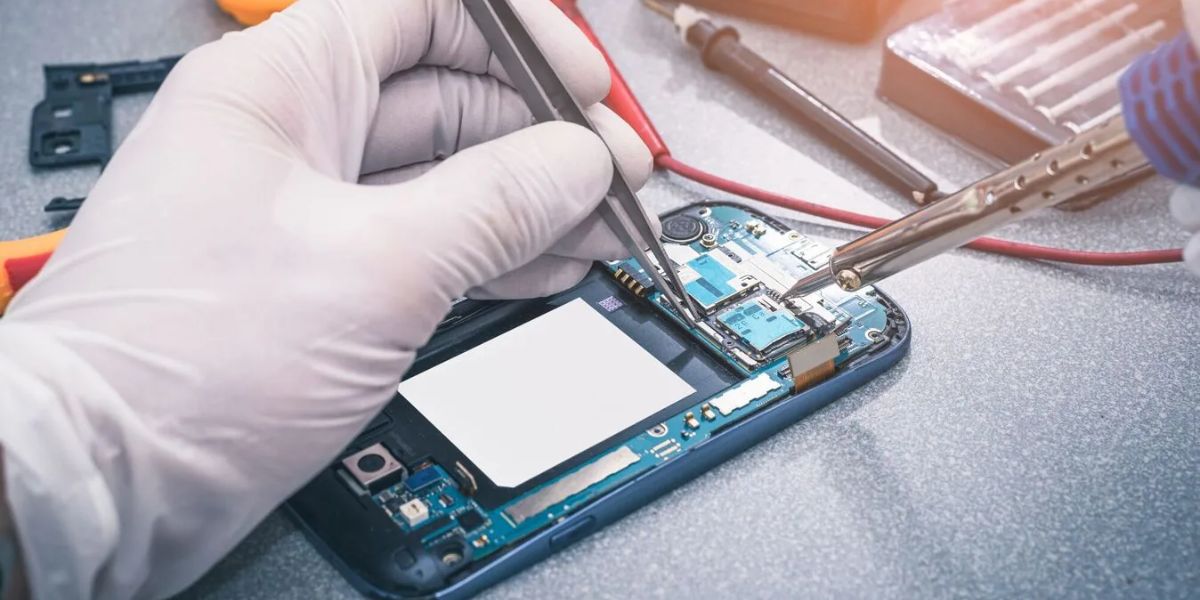
If your phone or laptop has stopped working, we understand how frustrating that can be. What’s even more concerning is handing over your device, full of personal photos, messages, and important files, to someone else for repairs. It’s vital to protect your privacy.
This guide will walk you through simple steps to protect your personal data before sending your device for repair, so that you can feel confident. It will cover everything from creating backups to using special modes on your device, all tailored for UK individuals.
Why Protecting Your Data is Crucial?
Let’s face it, our devices hold our lives these days, bank details, work emails, and family snaps. When something breaks, such as a cracked screen or faulty battery, you will rush to get it fixed. However, during this process, technicians may need to poke around, and that’s where risks can creep in. Data breaches or accidental losses can happen, even with the best intentions.
Everyone knows it’s scary, but by taking a few precautions, you can prevent data loss during repair and keep everything under wraps. Have you ever wondered what could go wrong if you skip this? Well, better safe than sorry, let’s dive in.
Common Risks During Device Repairs
First off, unauthorised access is a big one. Repair technicians may need to test your device, which could expose sensitive apps or files. Then there’s the chance of data wiping if they reset things without warning. Physical mishaps could also lead to losses. And don’t forget about shady practices, though rare, some might snoop.
By understanding these, you’re already ahead. People should think about this before dropping off their gadgets.
Backing Up Your Data
Before anything else, back up, it’s your safety net. Imagine getting your device back only to find everything gone. Backing up means copying your stuff to a safe place, so you can restore it later.
It’s easy, and we’ll break it down for different devices. This is key to safeguarding files before device repair, ensuring nothing important vanishes.
How to Back Up an iPhone
If you’re an Apple user, iCloud is your best friend. Head to Settings, tap your name, then iCloud, and select iCloud Backup. Turn it on and hit Back Up Now, make sure you’re on Wi-Fi. It saves photos, apps, and settings automatically.
Alternatively, connect your Mac or PC to your device with a cable, open Finder or iTunes, and click “Back Up Now.” Encrypt it with a password for extra security. Everyone does this regularly, and it takes the stress out of repairs.
Backing Up Android Devices
For Android folks, Google’s got you covered. Go to Settings, then Google, and tap Backup. Turn on Backup to Google Drive, it handles contacts, calendar, and more. For photos, use the Google Photos app to automatically back up.
If you prefer, plug into a computer and copy files manually to an external drive. Samsung users can use Smart Switch for a full backup. It’s straightforward, and you’ll thank yourself later.
Extra Tips for Comprehensive Backups
Don’t stop at the basics. Check if all your apps are backed up; some, like WhatsApp chats, require manual export. Use external hard drives for large files or services like Dropbox. And always verify the backup worked by checking a few files. This way, you’re fully prepared, no matter what happens during the fix.
Using Built-In Repair Modes for Added Protection
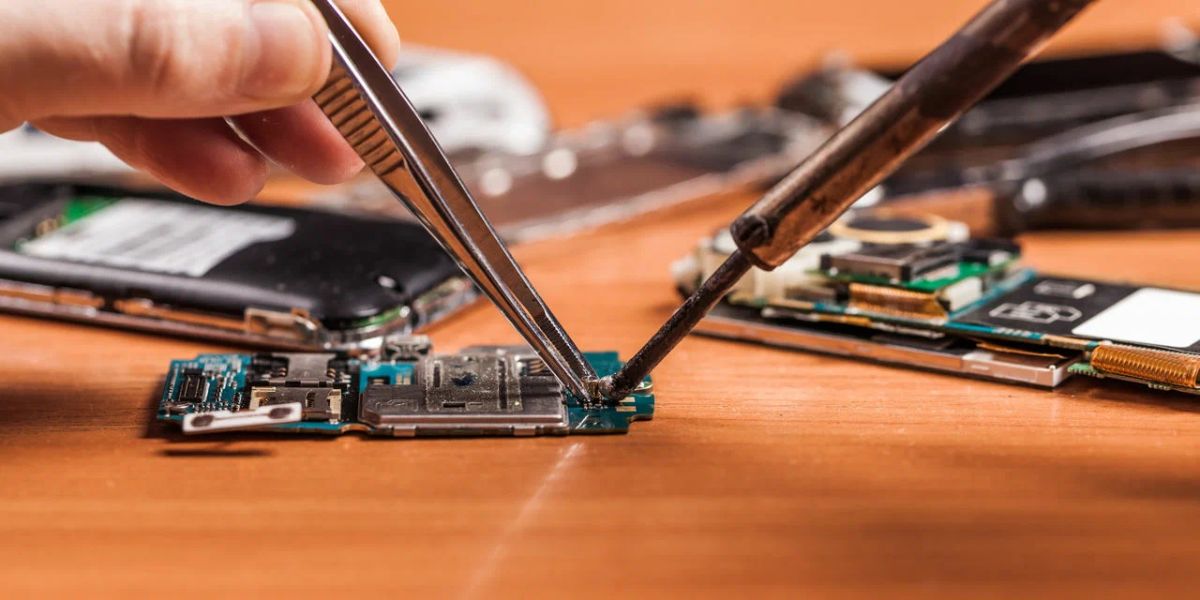
Modern devices have clever features that protect your data without erasing everything. These modes allow technicians to work while keeping your personal information secure.
It’s like giving them a guest pass; they can fix, but not snoop. This is one of the best ways to keep your data private during repair, especially for phones.
Samsung’s Maintenance Mode
If you’ve got a Samsung, Maintenance Mode is brilliant. It creates a separate environment where your data stays hidden. To turn it on, go to Settings, tap Device Care, scroll to Maintenance Mode, and hit Turn On. Your phone restarts into this safe zone.
Techs can test hardware without seeing your apps or files. When it’s back, swipe down for notifications, tap Exit, and restart with your PIN. Simple, and it gives peace of mind.
Google Pixel’s Repair Mode
Pixel owners, you’ve got Repair Mode in recent updates. It locks down your data in a protected partition. Find it in Settings under System, then Repair Mode, enable it, and reboot. The device boots up without access to your accounts or personal stuff. Exit by restarting and authenticating. It’s designed for precisely this scenario, so use it if you’re sending your phone away.
Apple Device Considerations
Apple doesn’t have a dedicated repair mode, but you can prep smartly. Back up first, then, if you’re comfy, go to Settings > General > Transfer or Reset iPhone, and select Erase All Content and Settings.
This wipes it clean for the repair. Just don’t share your Apple ID or passcode. For in-store fixes, they might use diagnostic mode, which doesn’t touch your data. Always ask about their privacy policies, too.
Additional Ways to Secure Your Privacy
Beyond backups and modes, a few more tricks help. Log out of all accounts, email, social media, and banking apps. Remove any sensitive files temporarily, or use encryption if your device supports it. Set a strong passcode and enable Find My for tracking. Stay with the device during the repair, or choose same-day services. These steps add layers of protection, making sure nothing slips through.
Factory Reset
Sometimes, a factory reset is the way to go. It erases everything, so back up first. On iPhone, it’s in Settings under General. For Android, look in System or About Phone for Reset options. Do this if you’re paranoid about privacy, but remember, you’ll need to set it up again afterwards. It’s effective, though a bit drastic.
Choosing a Reliable Repair Service
Not all repair services maintain the same standards, so it is important to choose providers with positive reviews and transparent privacy policies. In Hove, mobile repair shops such as Fone World Hove are recognised for careful handling of devices. Customers should confirm whether a passcode is required and review the shop’s terms before proceeding. Reputable businesses clearly explain their repair process and respect customer privacy.
Questions to Ask Your Repair Technician
Before handing over, quiz them: How do you handle data privacy? Do you perform wipes? What’s your policy on data loss? This shows you’re serious and helps gauge their professionalism. Everyone always does this; it weeds out the dodgy ones.
After the Repair
Once it’s fixed, restore from your backup right away. On the iPhone, during setup, choose Restore from iCloud. Android? Use Google Backup or copy files back. Then, scan for any changes, check apps, files, and settings. Change passwords if you’re extra cautious. This ensures everything’s as it should be.
Monitoring for Any Issues Post-Repair
Keep an eye out for unusual behaviour, such as slow performance or unfamiliar apps. Run a security scan with built-in tools or apps. If something’s amiss, contact the shop immediately. Better to catch it early.
FAQs
What if my device doesn’t have a repair mode?
No worries, focus on backing up and logging out of accounts. Consider a factory reset if privacy is your top concern, then restore after.
How long does a backup take?
It depends on your data size and connection. A full iCloud backup might take 30 minutes to a few hours on good Wi-Fi. Plan ahead.
Can repair shops access my data without permission?
Reputable ones won’t, but always use protections like modes or resets. Choose trusted services to minimise risks.
What should I do if data is lost during repair?
First, check your backup. If it’s the shop’s fault, ask for compensation.
Final Thoughts
Keeping your data safe during repair doesn’t have to be a headache. By regularly backing up your data, utilising repair modes provided by professionals, and choosing the right service, you ensure your information remains secure and in your control throughout the process.
For those in the UK who require mobile LCD replacement, local repair providers like Fone World Hove can assist with reliable service. It is important to choose technicians who prioritise data privacy and handle personal information responsibly.